Conditional Slide for Google Slide
Conditional Slides - User Guide
What are Conditional Slides?
Conditional slides allow you to show or hide specific slides in your presentation based on data from your Airtable records. This is useful when you want to include slides only when certain conditions are met.
How to Set Up Conditional Slides
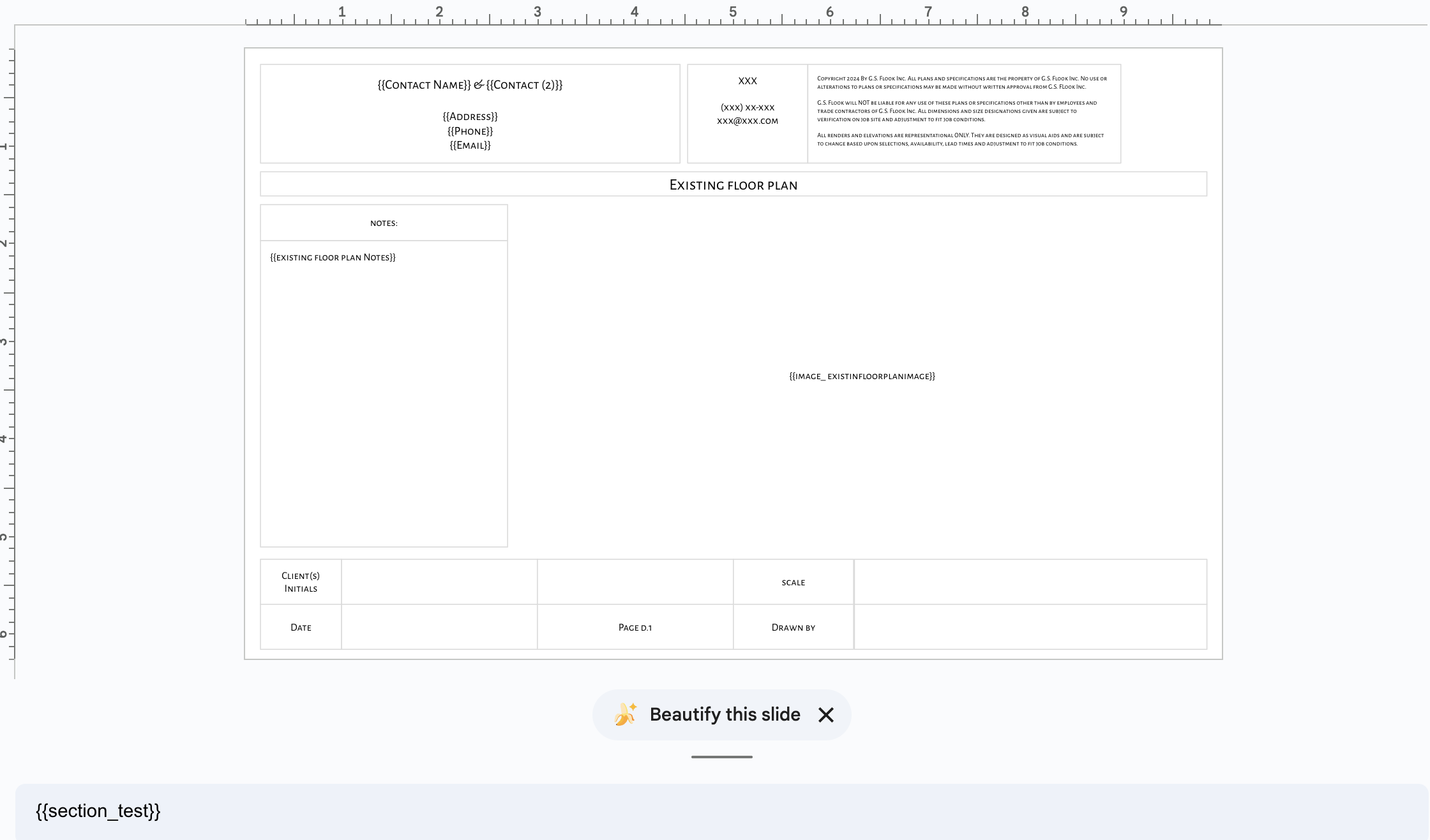
Step 1: Tag Your Slides
In your Google Slides presentation, add a special tag to the speaker notes of any slide you want to make conditional:
{{section_name}}Replace name with a unique identifier for that slide (e.g., {{section_premium}}, {{section_details}}).
Example:
Slide about premium features: Add
{{section_premium}}to speaker notesSlide with technical details: Add
{{section_technical}}to speaker notes
Step 2: Configure Conditions
After connecting your slide to Typeflow:
Go to your flow configuration page
Find the "Conditional Sections" card
For each tagged slide, you'll see its name
Click to configure conditions
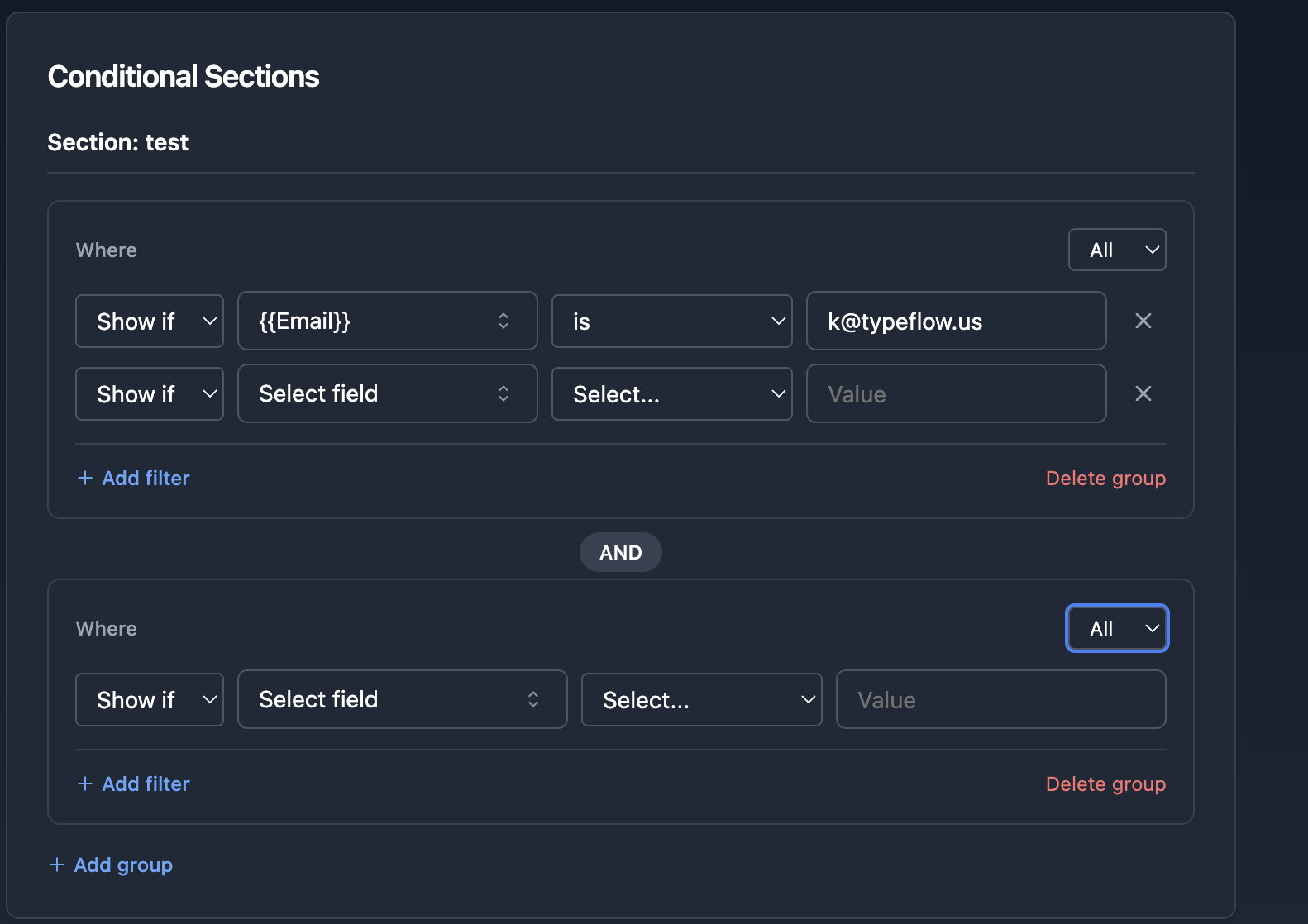
Step 3: Add Your Rules
For each conditional slide, you can add rules that determine when it should appear:
Basic Structure:
Show if / Hide if: Choose whether to show or hide the slide when conditions match
Variable: Select which field from your Airtable to check
Operator: Choose how to compare (equals, contains, is empty, etc.)
Value: Enter the value to compare against
Understanding Condition Groups
You can create complex rules using condition groups:
Within a Group (All / Any)
All: Every condition in the group must be true
Any: At least one condition in the group must be true
Between Groups (AND / OR pill button)
AND: All groups must be true
OR: At least one group must be true
Examples
Example 1: Simple Condition
Goal: Show a "Premium Features" slide only for premium customers
Show if
{{Customer Type}} equals "Premium"
Example 2: Multiple Conditions (AND)
Goal: Show a slide only for premium customers in the US
Group 1 (All):
  Show if {{Customer Type}} equals "Premium"
  Show if {{Country}} equals "United States"
Example 3: Multiple Conditions (OR)
Goal: Show a slide for VIP or Premium customers
Group 1 (Any):
  Show if {{Customer Type}} equals "VIP"
  Show if {{Customer Type}} equals "Premium"
Example 4: Complex Conditions
Goal: Show a slide for premium customers OR customers with orders over $1000
Group 1 (All):
  Show if {{Customer Type}} equals "Premium"

OR (click the AND pill to change it to OR)

Group 2 (All):
  Show if {{Total Orders}} contains "1000"
Available Operators
is: Exact match
is not: Not equal to
contains: Text contains the value
does not contain: Text doesn't contain the value
is not empty: Field has a value
is empty: Field has no value
How It Works
When you generate a document:
Typeflow creates a copy of your Google Slides
For each conditional slide, it evaluates your conditions against the Airtable record data
If conditions are not met, the slide is deleted from the final presentation
If conditions are met, the slide is kept in the final presentation
The final presentation is then converted to PDF (if configured)
Important Notes
Refresh Data: If you add or remove
{{section_xxx}}tags in your slides, click "Refresh data" in Typeflow to update the configuration. Your existing conditions will be preserved.Multiple Conditions: You can add as many conditions and groups as needed
Testing: Always test your conditions with different records to ensure they work as expected
Slide Order: Slides are evaluated in order, so plan your presentation structure accordingly
Troubleshooting
My slide is not appearing
Check that your condition logic is correct (Show if vs Hide if)
Verify the field value in Airtable matches exactly what you entered
Make sure the variable is correctly mapped in your flow
My slide is always appearing
Check if you have any empty conditions
Verify the operator is correct (equals vs contains)
Test with a simpler condition first
My conditions were erased
Make sure to click "Refresh data" instead of reconnecting the document
The "Refresh data" button preserves your conditions while updating slide metadata
Support
If you need help setting up conditional slides, contact our support team with:
Your flow ID
The slide names you're trying to make conditional
The conditions you want to apply