E-Signature: Complete Guide
Typeflow's e-signature feature allows you to:
Send documents for signature via email or shareable link
Support multiple signers with sequential or parallel signing
Collect different field types: signature, text, date, checkbox
Track signing progress in real-time
Receive legally compliant PDFs with a Certificate of Completion
Setting Up E-Signature
Step 1: Open E-Signature Settings
Open your flow in Typeflow
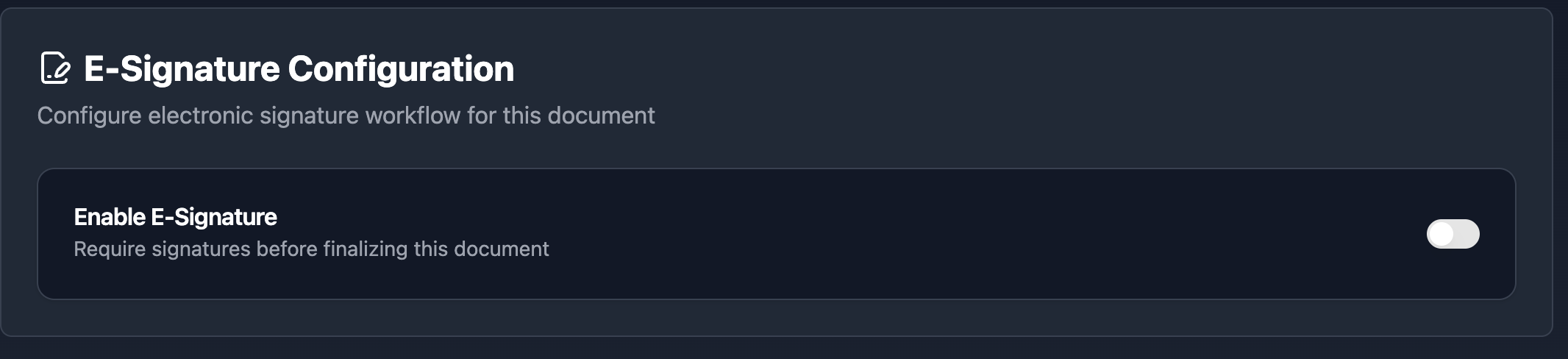
Click the E-Signature tab in the left sidebar
Toggle Enable E-Signature to ON
Step 2: Configure Basic Settings
| Setting | Description | Options |
|---|---|---|
| Signing Mode | How signers receive and complete the document |
Parallel: All signers can sign at the same time Sequential: Signers must sign in order (1, then 2, etc.) |
| Expiration | How long signing links remain valid | 1-90 days (default: 30 days) |
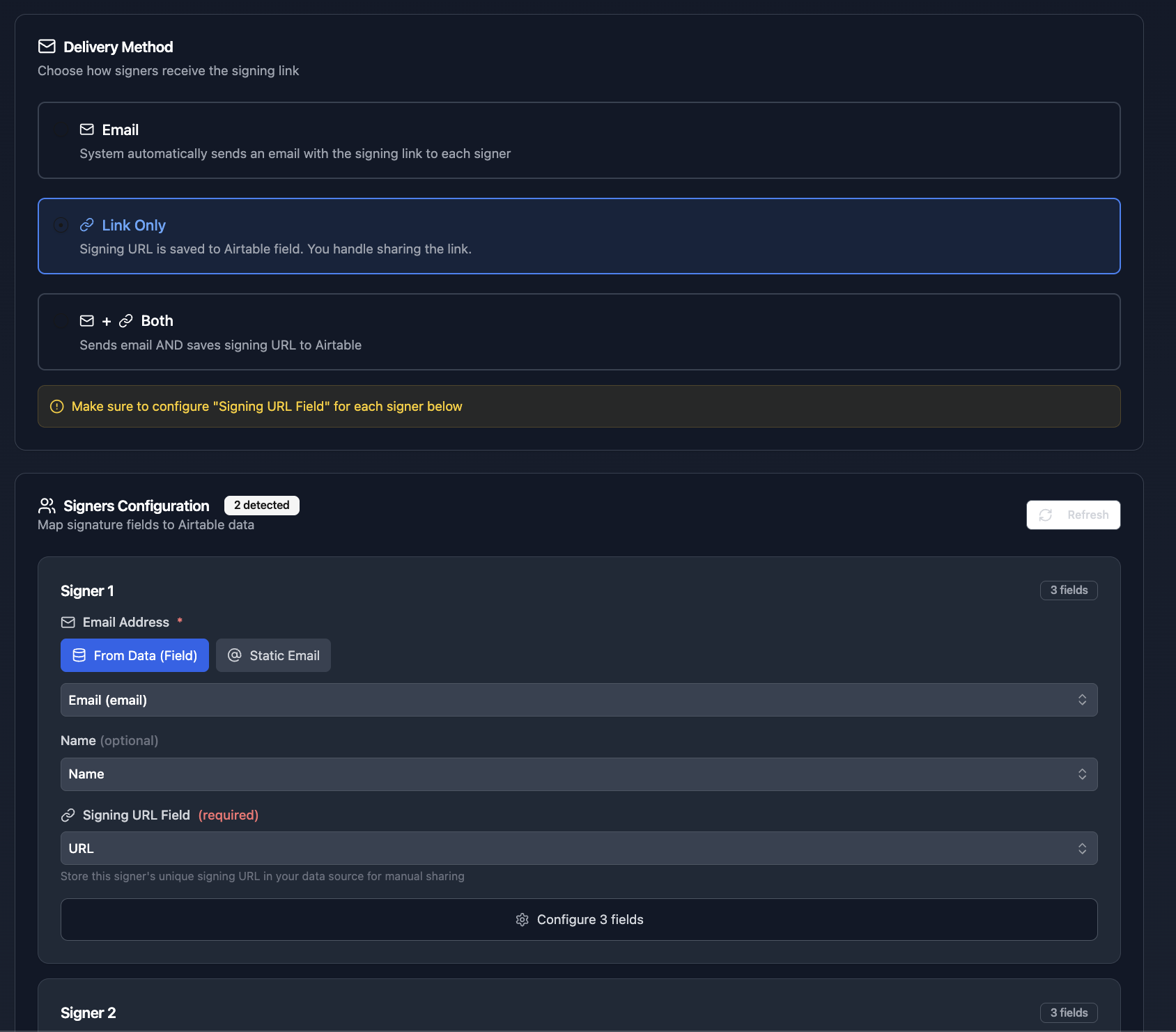
| Delivery Method | How signers receive their signing link |
Email: Automatic email sent Link only: URL saved to your database Both: Email + URL saved |
Adding Signature Fields to Your Template
In your document template (Google Doc or HTML), add placeholders where you want signature fields to appear.
Placeholder Format
{{e-signature.TYPE_SIGNERNUMBER_OPTIONALNAME}}Available Field Types
| Type | Placeholder Example | What the Signer Sees |
|---|---|---|
| Signature | {{e-signature.signature_1}} |
Draw or type their signature |
| Text | {{e-signature.text_1_name}} |
Text input field |
| Date | {{e-signature.date_1}} |
Date picker |
| Checkbox | {{e-signature.checkbox_1_agree}} |
Checkbox to confirm |
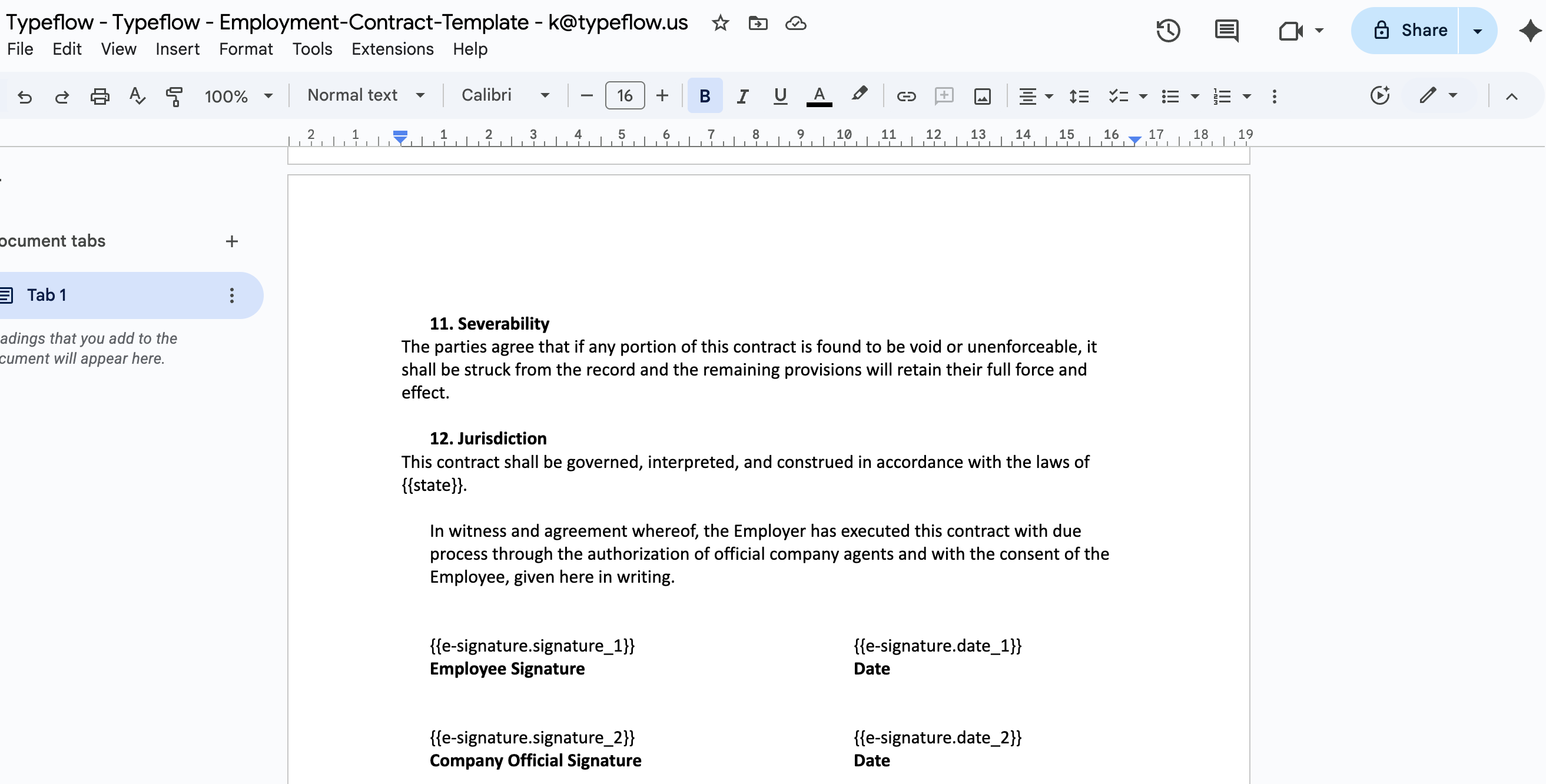
Example: Contract with 2 Signers
CLIENT SIGNATURE

Signature: {{e-signature.signature_1}}
Full Name: {{e-signature.text_1_name}}
Date: {{e-signature.date_1}}

---

COMPANY SIGNATURE

Signature: {{e-signature.signature_2}}
Authorized By: {{e-signature.text_2_name}}
Date: {{e-signature.date_2}}
Tips for Placing Fields
Place each placeholder on its own line
Avoid putting placeholders inside tables (can cause positioning issues)
Use descriptive names:
{{e-signature.text_1_address}}is clearer than{{e-signature.text_1}}
Configuring Signers
In the E-Signature tab, add one or more signers.
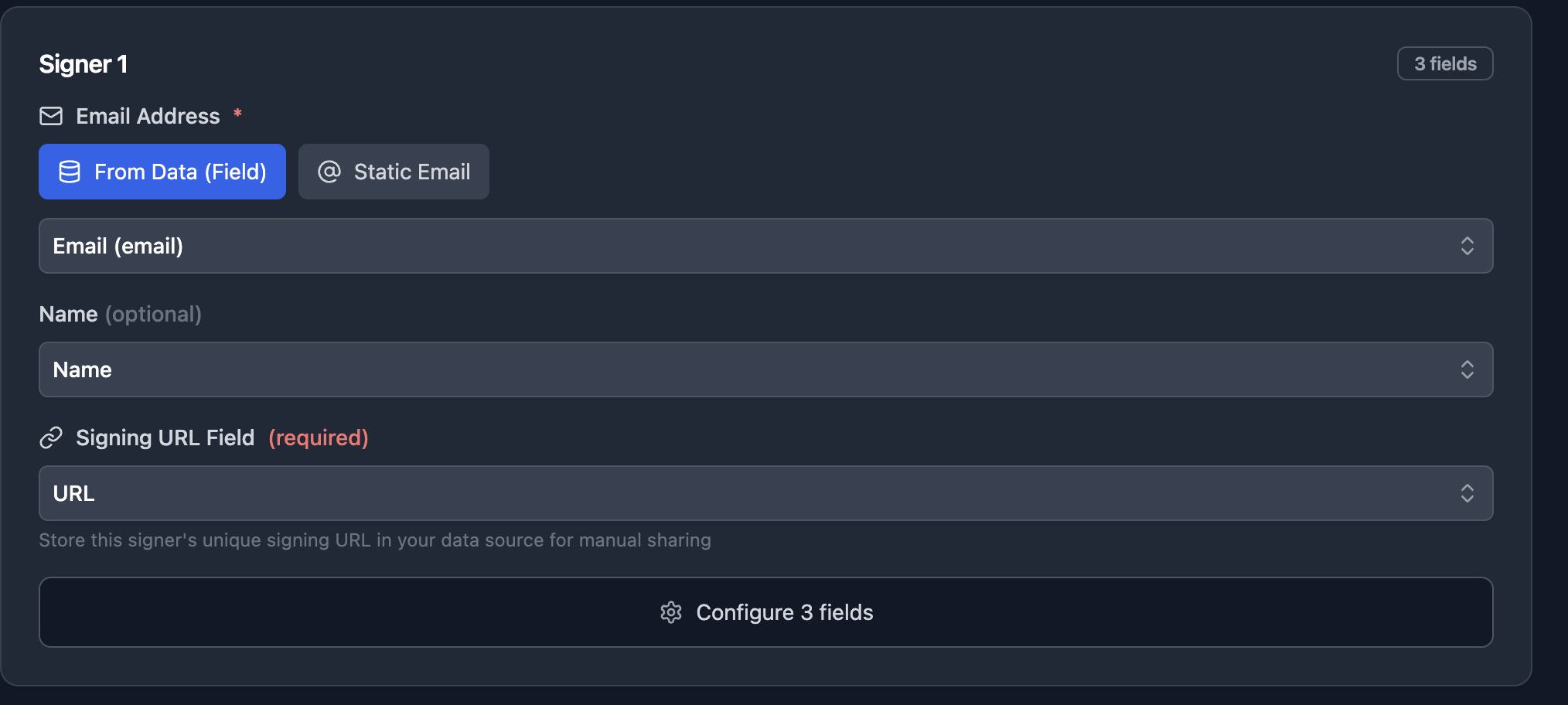
Signer Email
| Option | Use When |
|---|---|
| Static Email | The signer is always the same person (e.g., your company representative) |
| From Database Field | The signer varies per record (e.g., customer email from Airtable/Softr) |
Signer Settings
| Setting | Description |
|---|---|
| Name | Display name shown in emails and on the signing page |
| Order | Signing order (only matters for Sequential mode) |
| Signing URL Field | (Optional) Database field to store the signing URL |
Storing Signing URLs
If you configure a Signing URL Field, Typeflow will save each signer's unique URL to your database. This is useful for:
Manually sharing the link if the email doesn't arrive
Tracking which documents are pending signature
Building custom dashboards
Signer Experience
Here's what your signers see when they click their signing link.
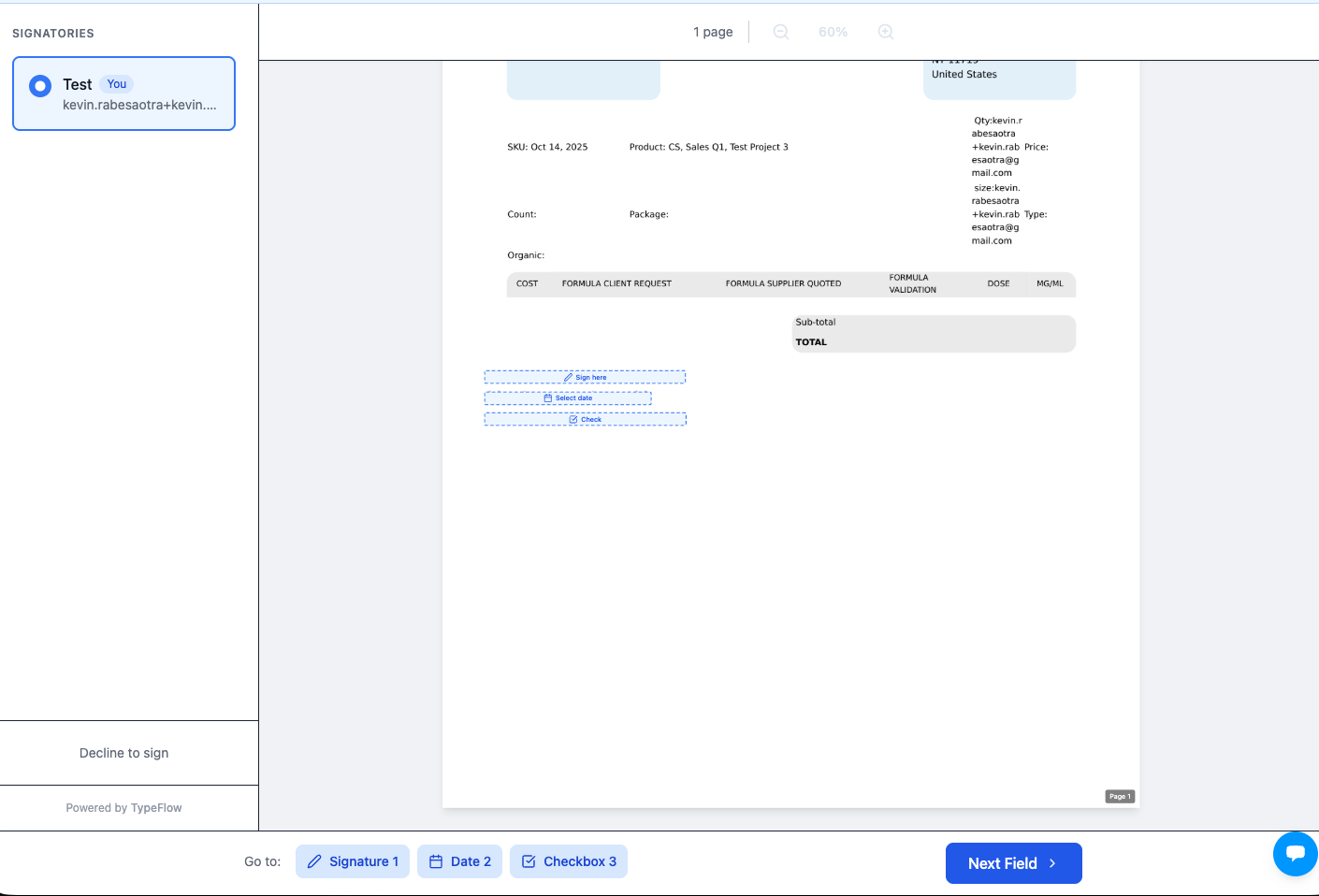
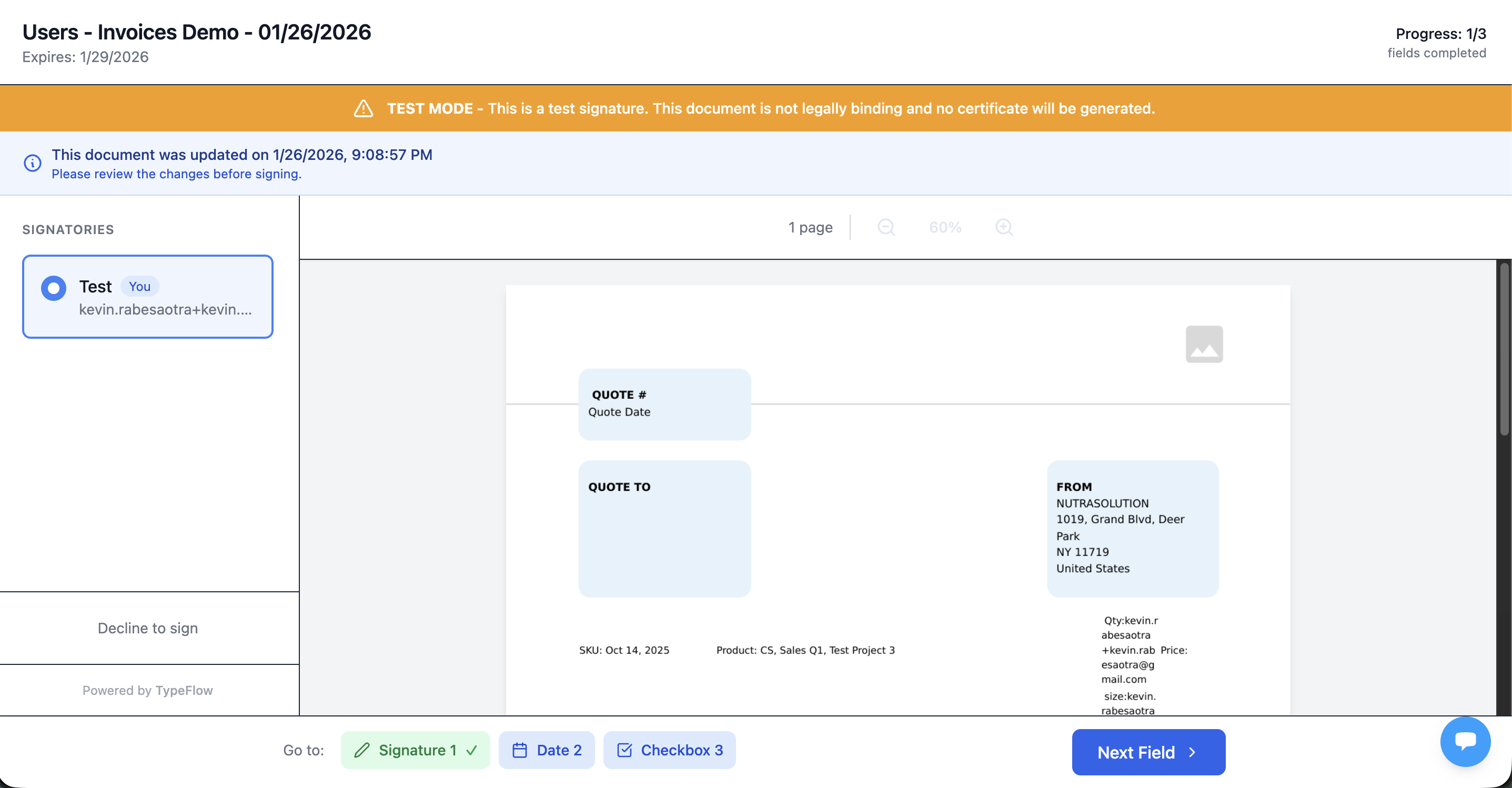
1. Document View
The signer sees the full PDF with highlighted fields to complete.
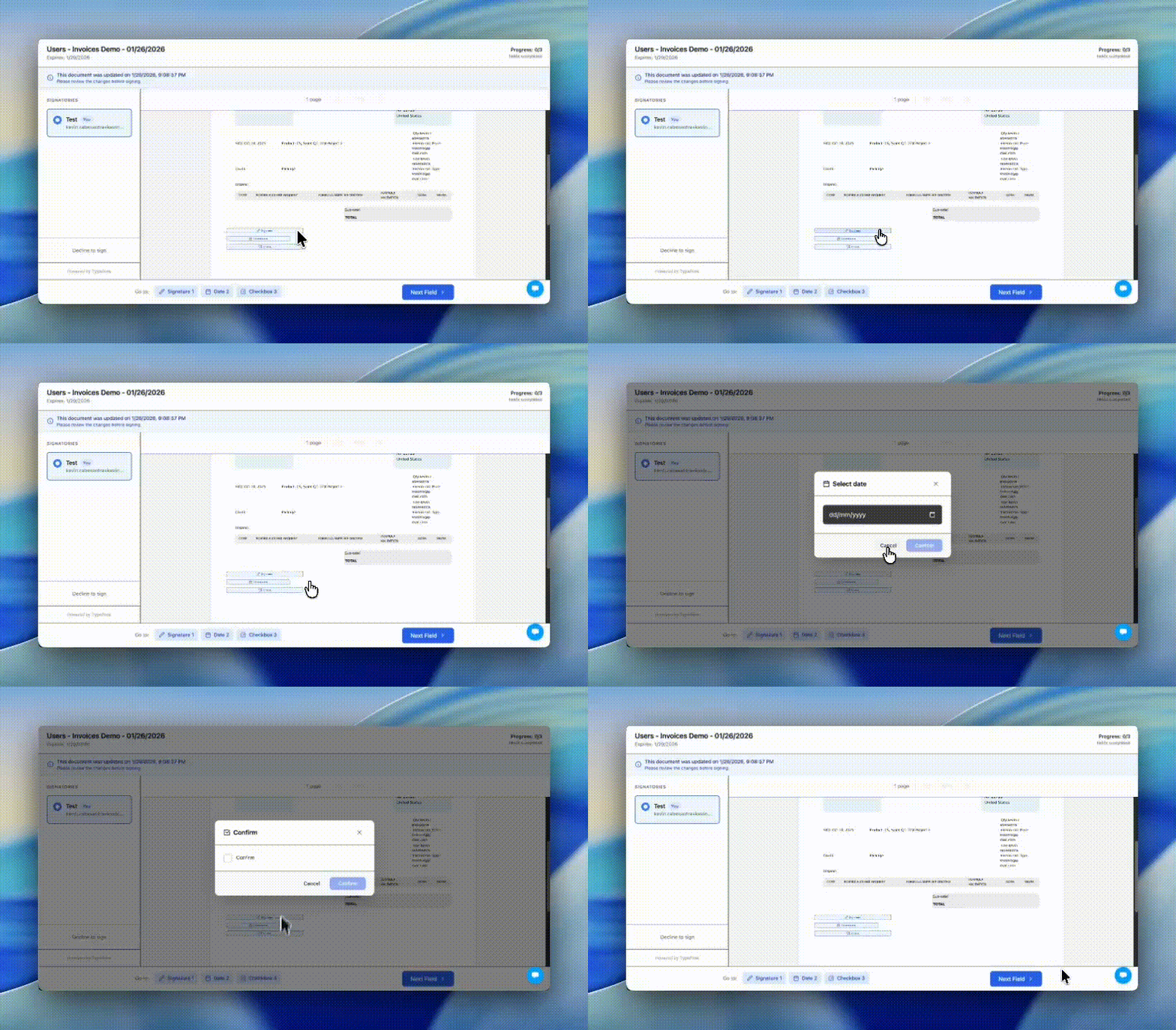
2. Completing Fields
Click any highlighted field to open a modal:
| Field Type | Signer Action |
|---|---|
| Signature | Draw with mouse/finger OR type their name |
| Text | Enter text in input field |
| Date | Select from date picker |
| Checkbox | Check the confirmation box |
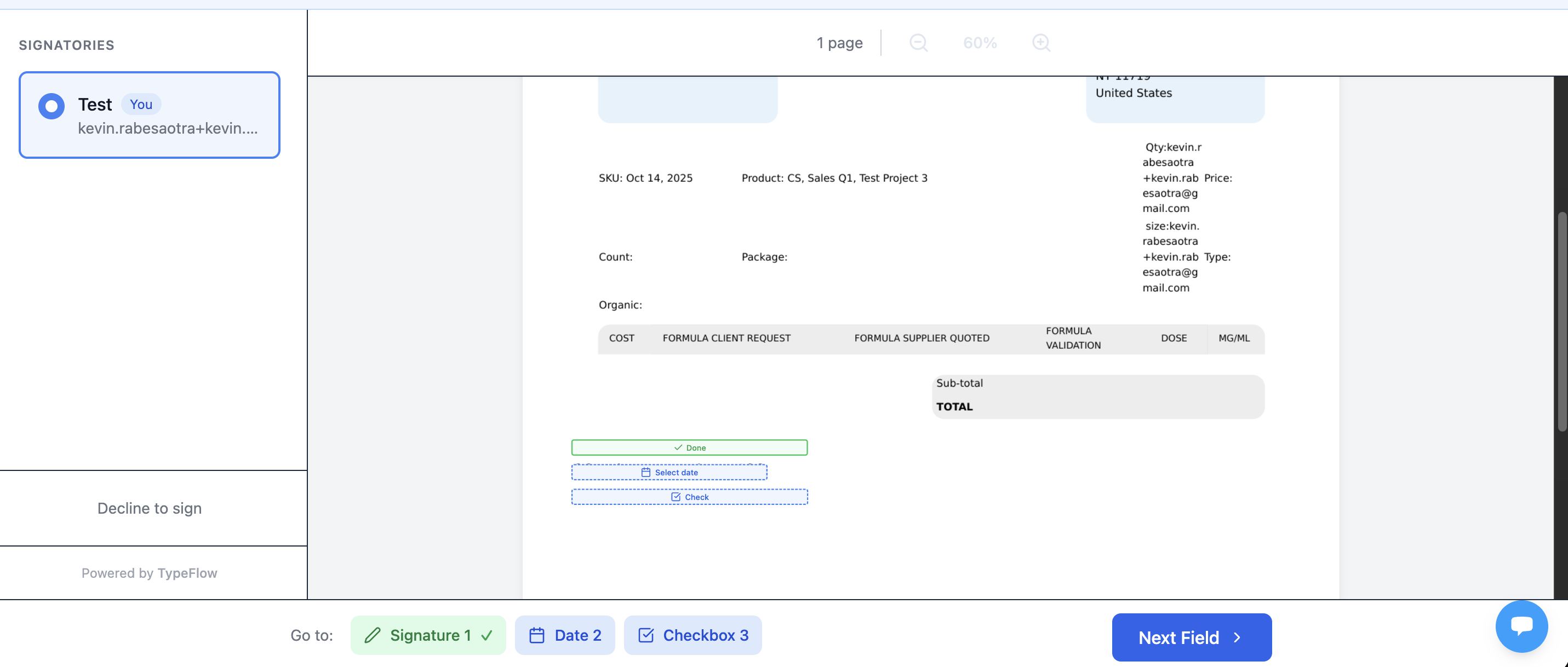
3. Progress Tracking
A sidebar shows:
Fields already completed (green checkmark)
Fields still pending
Overall progress
4. Complete Signing
Once all fields are filled:
Click "Complete Signing"
See confirmation screen
Option to download the document
Mobile Support
The signing page is fully responsive. Signers can:
View documents on any device
Draw signatures with their finger on mobile/tablet
Pinch to zoom on the PDF
After Signing is Complete
When all signers have signed:
1. Final PDF Generated
All signatures and field values embedded in the PDF
Certificate of Completion page added (see below)
SHA-256 hash calculated for document integrity
2. Database Updated
Signed PDF uploaded to your specified attachment field
Field values (text, date, checkbox) mapped to your database fields
3. Notifications Sent
All signers receive a completion email with the signed PDF attached
---
Certificate of Completion
Every signed document includes a Certificate of Completion page with:
| Information | Description |
|---|---|
| Document Info | Name, ID, creation and completion dates |
| Signer Details | For each signer: signature image, name, email, timestamp |
| Audit Trail | IP address, location, browser, time spent viewing |
| Legal Statement | Compliance with ESIGN Act, UETA, eIDAS |
| Document Hash | SHA-256 hash for integrity verification |
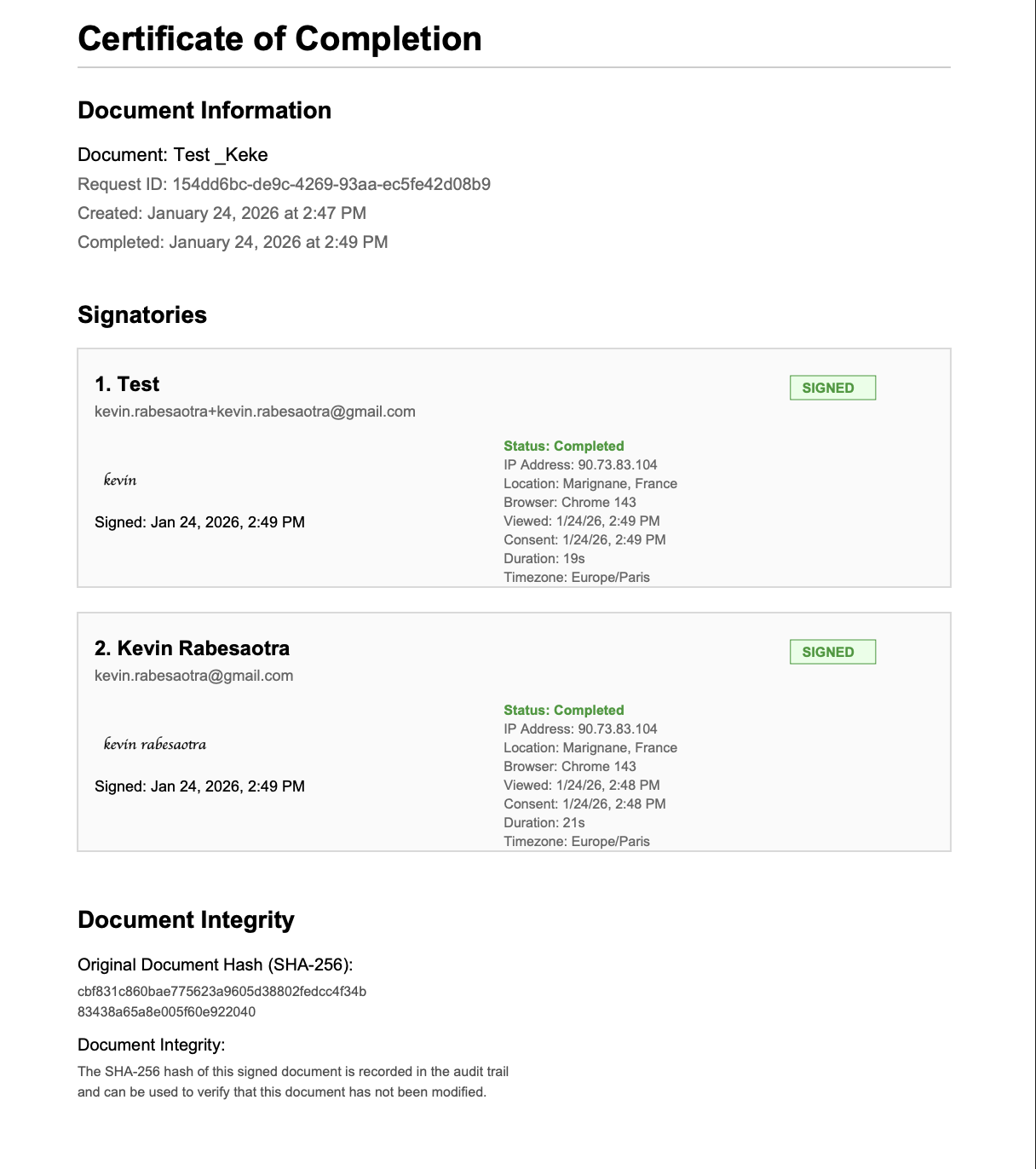
This certificate provides legal evidence that the document was signed electronically.
Test Mode
Before going live, test your e-signature flow.
How to Use Test Mode
Click "Test" in the flow builder (instead of triggering a real automation)
A test document is generated
Signing works normally, but:
An orange "TEST MODE" banner appears
No Certificate of Completion is generated
The document is not legally binding
Test to Production
If you test a document, then regenerate it in production mode (same record):
The same signing URL remains valid
Test mode banner disappears
Certificate will be generated upon completion
FAQ
Can signers sign on mobile?
Yes! The signing page is fully responsive. Signers can draw signatures with their finger.
What if a signer doesn't receive the email?
Check the spam folder. You can also copy the signing URL from your database (if configured) and send it manually.
Can I update the document after sending?
Yes. Regenerate the document for the same record. Signers keep their same URL but will see the updated document and need to re-sign.
What happens if a signer declines?
The entire session is marked as declined. All signers are notified, and no one can sign further.
How long are signing links valid?
Default is 30 days. Configure this in E-Signature settings (1-90 days).
Is this legally binding?
Yes. Typeflow e-signatures comply with:
US: ESIGN Act, UETA
EU: eIDAS Regulation (Simple Electronic Signature)
Can I have multiple signature flows for the same record?
Yes. Each flow creates a separate signature session. For example, you can have a "Sales Contract" flow and an "NDA" flow for the same client.
---
Troubleshooting
| Issue | Solution |
|---|---|
| "Link expired" | Regenerate the document or increase expiration days in settings |
| "Not your turn" | Previous signer must complete first (Sequential mode only) |
| Signature not appearing in final PDF | Ensure placeholder is on its own line, not inside a table |
| Email not received | Check spam folder, verify email address is correct |
| Wrong date/time in certificate | This is captured from the signer's browser timezone - it's correct for them |
---
Need More Help?
- Email: k@typeflow.us